AI Mac Cleaner
Mac Says "Other" Storage Won't Go Away? Here's Why
Cleared your caches, emptied the Trash, and the "Other" or System Data number in About This Mac still hasn't dropped? That's usually the storage chart itself lagging, not a sign your cleanup failed.
You cleared your browser cache, emptied the Trash, maybe even ran a cleaner — and the "Other" (or, on recent macOS, "System Data") number in About This Mac's storage chart hasn't moved. It still says the same 40 or 60GB it said before you started. That's a genuinely common, repeated complaint on Apple's own forums, and it's worth being precise about why, because the cause isn't that your cleanup didn't work.
"Other" and "System Data" are the same idea with two different names
Apple's wording for this category, as it appears in System Settings, is blunt about what's in it: it's everything that doesn't fit the other listed buckets — Applications, Documents, Photos, and so on — and critically, Apple's own text says you can't manage the contents of this category directly. It's computed by macOS, not something you clear with a button, which is already the first reason it doesn't respond the way you'd expect a normal folder to.
In practice, "Other"/System Data typically contains: app and system caches, log files and diagnostic reports, local Time Machine snapshots (when your backup disk isn't connected), developer files like Xcode's DerivedData and old Simulator data, app support data for things like Slack, Teams or Adobe apps, virtual machine and container disks, and Mail's downloaded attachments. Several of those — caches, DerivedData, old simulators — are exactly what a cleanup tool targets and genuinely does shrink. Others, like local Time Machine snapshots, are managed entirely by macOS on its own schedule and aren't touched by clearing any cache at all.
Why the number doesn't move even after a real cleanup
Two separate things are usually going on, and they compound:
- The chart itself updates lazily. Apple's Storage breakdown isn't recalculated in real time — it's often a day or more out of date, regardless of what tool (Finder, a cleaner, Terminal) actually freed the space. You can genuinely recover several gigabytes and watch the chart's number barely move, or even tick up briefly, before it eventually settles down on its own schedule.
- Not everything in "Other" is the same bytes a cleanup clears. The biggest single contributor is often local Time Machine snapshots, which macOS creates automatically when your backup disk isn't connected and deletes automatically once it needs the space back — no cache-clearing tool touches those, because they aren't cache files. Meanwhile, a cache you did clear might never have been counted toward "Other" the way you assumed.
The practical upshot: the "Other"/System Data figure is a poor number to judge a cleanup by. Free space shown in Finder's Get Info on the disk reflects the actual current state far more reliably than the Storage chart's category breakdown does.
What you can actually do about the parts that are real
- Caches, logs, and developer junk (Xcode DerivedData, old iOS Device Support, Simulator caches, npm cache) are genuinely safe to clear and genuinely reduce real disk usage, even if the chart lags in reflecting it.
- Old installers and disk images sitting in Downloads add up and are easy to forget about.
- Local Time Machine snapshots, if you specifically want them gone sooner than macOS would reclaim them on its own, respond to
tmutil thinlocalsnapshots / 999999999999 4in Terminal — a real command, working with the same system that already manages them automatically under pressure. - Leftovers from apps you've already uninstalled sit in
~/Libraryindefinitely unless something specifically goes looking for them, since deleting the app bundle never touches its support files, caches or logs.
What doesn't help: repeatedly re-running the same cache cleanup expecting the chart's number to catch up immediately, or assuming a stuck number means your tool failed. It usually means the chart hasn't recalculated yet, not that nothing happened.
Where AI Mac Cleaner fits in — and is honest about what's display-only
AI Mac Cleaner's Cleanup module targets exactly the real, reclaimable part of this category — user caches, logs, Xcode DerivedData, old iOS Device Support, Simulator caches, npm cache, and installers or disk images — with each category showing its actual size before anything happens. Review-only categories (app leftovers of deleted software, Docker's disk image, virtual machines, archives in Downloads) stay unticked until you look at them yourself, the same safety rule that applies everywhere else in the app.
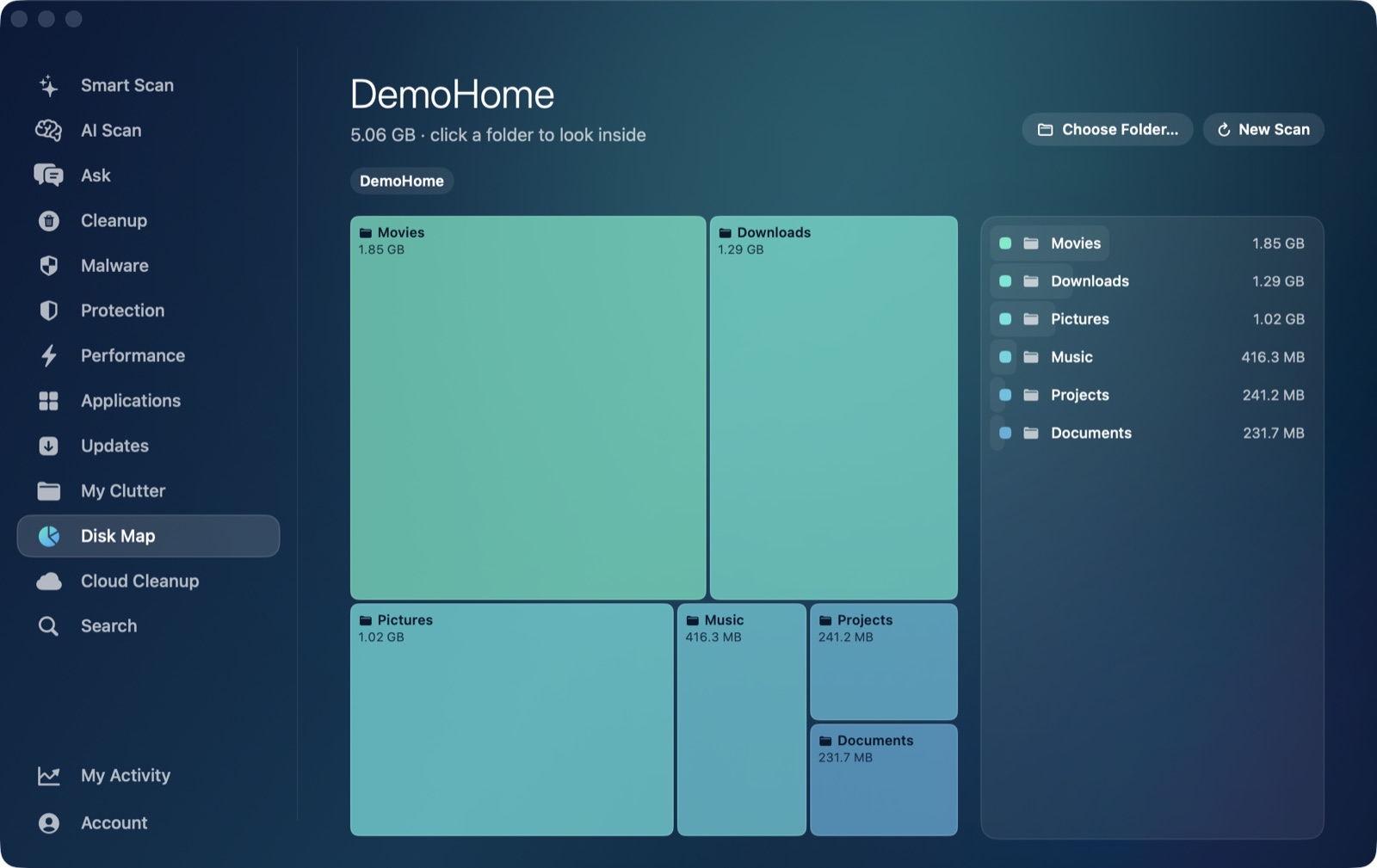
What it won't do, because no app running in userspace can, is force macOS's own Storage chart to recompute on demand, or directly clear local Time Machine snapshots or the swap file — those stay under macOS's own management regardless of which cleaner you use. Where the app does help with the diagnosis itself is Disk Map: pointing its squarified treemap at your whole disk shows exactly what's using real, current space right now, broken down by actual folder — a more trustworthy picture than a lagging summary number, and a good next step if "Other" staying high is making you suspicious something specific is hiding in there. For the full breakdown of what's in this category and what's safe to touch, see what "System Data" really is on a Mac; if cleaning things up generally hasn't freed as much as you expected, see Mac storage still full after cleaning.
AI Mac Cleaner has a 7-day free trial with every feature unlocked and no card required, plans from $6.99/mo after.
Frequently asked questions
Why does "Other" storage on my Mac stay the same after I clean up?
Mostly because the Storage chart updates lazily and can lag a day or more behind the actual state of your disk, and because not everything counted in "Other" — local Time Machine snapshots especially — is touched by clearing app caches at all. Check free space in Finder's Get Info for a more current number.
What's the difference between "Other" and "System Data" on a Mac?
They're the same category under two different names — Apple renamed "Other" to "System Data" in more recent macOS versions. Both mean the same thing: everything that doesn't fit Applications, Documents, Photos and the other listed buckets, managed by macOS rather than cleared with a button.
Can I manually clear the "Other" storage category?
Not directly — Apple's own description says this category is managed by macOS, not something you clear as a whole. You can reduce specific real contributors inside it (caches, logs, developer junk, old installers) with a cleanup tool, and thin local Time Machine snapshots manually with tmutil thinlocalsnapshots in Terminal.
Is a big "Other"/System Data number something to worry about?
Usually not. It commonly runs 20-80GB on a well-used Mac and includes things macOS reclaims automatically when it actually needs the space, like local Time Machine snapshots. It's worth investigating if it's unusually large or growing fast, but the raw number by itself isn't a problem to panic over.
Does AI Mac Cleaner have a button that specifically clears "Other" storage?
No single button clears the whole category, because parts of it (local snapshots, the swap file) are managed entirely by macOS. The app's Cleanup module clears the real, reclaimable parts — caches, logs, developer junk — and Disk Map shows you what's actually using space right now if you want to see past the chart's lag.
See past the chart's lag. Start the free 7-day trial — every feature unlocked, no card required. Plans start at $6.99/mo (yearly $49.99, lifetime $199 for one Mac); see full pricing for the 2- and 5-Mac tiers.