AI Mac Cleaner
coreaudiod High CPU on Mac: What It Is and What to Check
coreaudiod is the system daemon that runs every audio device on your Mac. It spikes around device switching, AirPlay and Bluetooth audio — here's what's normal and what's worth checking when it doesn't settle.

If coreaudiod is sitting high in Activity Monitor, it's not an app you installed or a process with any settings of its own — it's the system daemon macOS uses to actually drive audio, for every app that plays or records sound at the same time. Seeing it spike feels alarming mostly because it's unfamiliar; in most cases it's doing exactly the audio-routing work you'd expect, just more of it than usual.
What coreaudiod actually does
coreaudiod is part of Apple's Core Audio framework, and it's the process that owns your Mac's actual audio hardware and virtual audio devices — built-in speakers and mic, AirPods and other Bluetooth audio, AirPlay speakers, USB and Thunderbolt audio interfaces, and any third-party virtual audio driver you've installed (Loopback, BlackHole, a video-call app's virtual input). Every app that plays or records sound routes through it rather than talking to hardware directly, so it's coordinating all of that at once: sample-rate conversion, mixing multiple apps' audio streams together, and switching the active device when you plug something in or pick a different output.
Because it sits at the center of every audio path on the Mac, anything that touches audio devices touches coreaudiod — which is also why it's one of the few system daemons Apple designs to restart on its own if it crashes, usually within a second or two, rather than taking the whole audio system down with it.
When coreaudiod high CPU is normal
A brief spike, usually settling within a few seconds to a minute, is expected around:
- Switching audio output or input — picking a different device from the menu bar, a Bluetooth headset connecting or disconnecting, or an app changing the active device under the hood.
- AirPlay to a speaker or HomePod, especially right when the connection starts — coreaudiod negotiates the stream and handles any sample-rate conversion needed for that device.
- Multiple apps playing or recording audio at once — a video call with background music, or screen-recording software capturing system audio alongside your mic, means more streams for coreaudiod to mix in real time.
- Plugging in or removing a USB/Thunderbolt audio interface, which triggers a full device re-enumeration.
In all of these, usage should drop back down once the device change or stream finishes settling.
When it's worth a second look
If coreaudiod stays pinned high with no obvious device switch, AirPlay session or multi-app audio happening, a few things are worth checking in order:
- Look for a flapping Bluetooth connection. A Bluetooth headset or speaker that's weakly paired can disconnect and reconnect repeatedly, and each reconnect makes coreaudiod re-negotiate the audio path. Check System Settings → Bluetooth for a device cycling in and out.
- Check for a stuck AirPlay session. If AirPlay shows as connected to a device that's no longer actually reachable, coreaudiod can keep trying to maintain that stream. Disconnecting it from the Sound menu or Control Center usually clears this.
- Suspect a third-party virtual audio driver. Tools like Loopback, BlackHole, or audio routing used by streaming/recording software add virtual devices that coreaudiod has to manage alongside your real hardware — a misbehaving one is a common, if less obvious, cause. Temporarily disabling it (or checking whether it has an update) narrows this down.
- Restart the Mac. Since coreaudiod runs as a background daemon with no user-facing window or settings, a restart clears any stuck device or stream state cleanly.
Don't force-quit it
You technically can kill coreaudiod, but macOS restarts it automatically within a second or two — and when it restarts, every app with an open audio stream (a call in progress, music playing, a recording in progress) loses that stream and has to reconnect to the device, which is a worse interruption than the CPU spike itself. It's rarely the actual fix, since the restarted daemon goes right back to doing the same audio-routing work that was keeping it busy in the first place.
Where AI Mac Cleaner fits in — and where it honestly doesn't
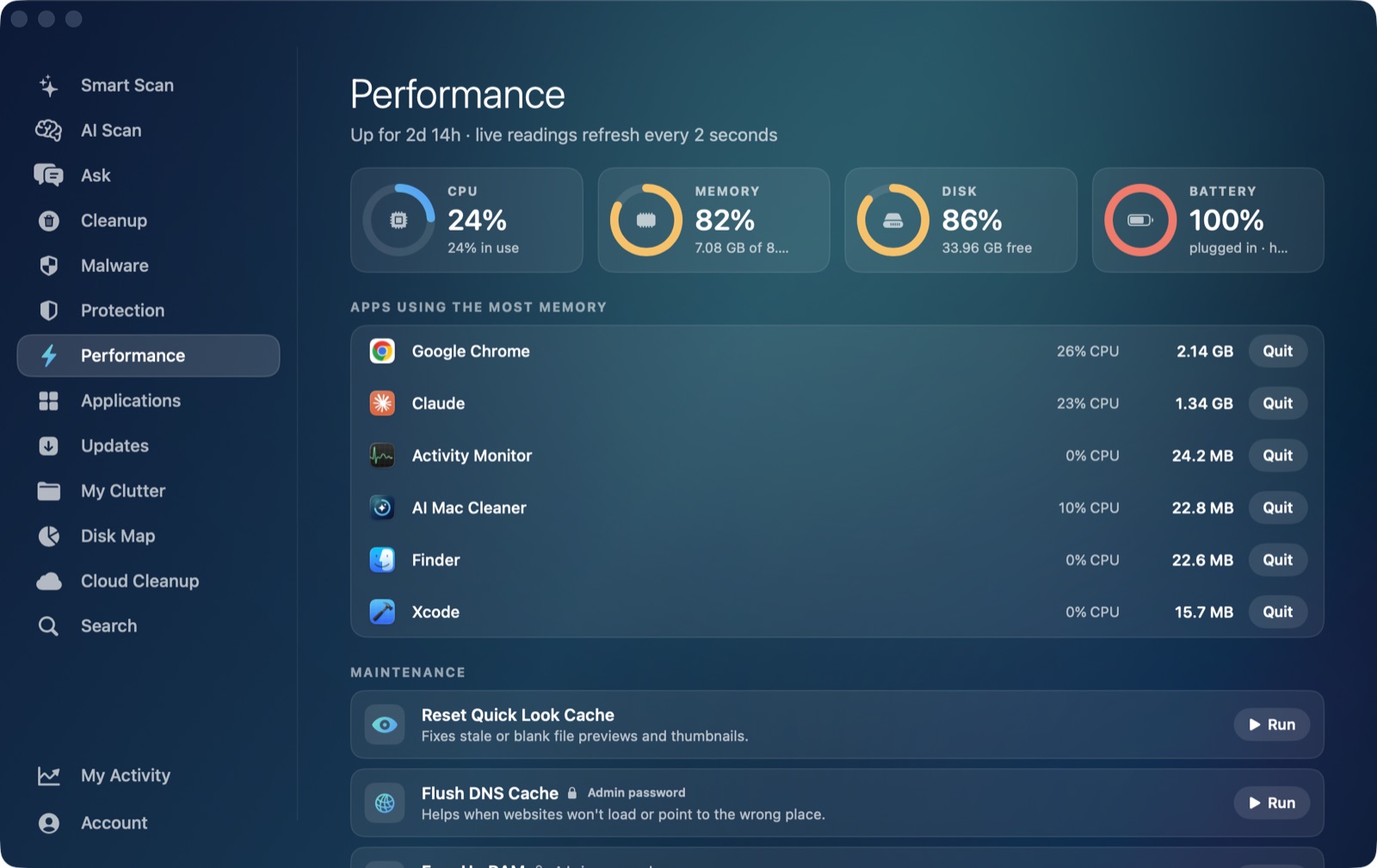
It's worth being specific here rather than overstating what the app shows. AI Mac Cleaner's Performance module gives you a live, overall CPU percentage for the whole Mac, which does reflect whatever coreaudiod (or anything else) is doing system-wide at that moment. But the module's ranked heaviest apps list only shows regular, Dock-visible applications — it's built from NSWorkspace's list of foreground apps, which by design doesn't include background system daemons like coreaudiod. The same is true of the app's launch agent manager, which looks at ~/Library/LaunchAgents, /Library/LaunchAgents and /Library/LaunchDaemons — coreaudiod runs from Apple's own sealed system location outside all three, so it never shows up there by name either.
In practice, that means AI Mac Cleaner tells you that your Mac's overall CPU is busy, but for identifying coreaudiod specifically as the cause, Activity Monitor (or top/ps in Terminal) is still the right tool — the same honest gap as the app's other by-process posts in this cluster, like coreduetd, mds_stores and mdworker.
Where the app does help is everything downstream of confirming it's a real, ongoing issue rather than a one-off blip: its Performance module's live CPU/RAM/disk/battery readings and ranked app list are useful for ruling out whether something else entirely — a heavy foreground app, not a background daemon — is actually behind a Mac that feels sluggish.
AI Mac Cleaner has a 7-day free trial with every feature unlocked and no card required, plans from $6.99/mo after.
Frequently asked questions
What is coreaudiod on my Mac?
It's Apple's system daemon for Core Audio — the process that owns your Mac's audio hardware and virtual audio devices, and routes every app's audio playback and recording through it. It isn't an app you installed, and it has no settings of its own.
Why does coreaudiod spike when I connect AirPlay or Bluetooth audio?
Connecting a new audio device means coreaudiod has to negotiate the stream, handle any sample-rate conversion, and switch the active audio path — real work that briefly uses more CPU before settling once the connection is stable.
Is it safe to force-quit coreaudiod?
You can, but macOS restarts it within a second or two, and every app with an open audio stream — a call, music, a recording — has to reconnect to the device when it does. It rarely fixes the underlying cause and briefly interrupts whatever was using audio.
Does AI Mac Cleaner show coreaudiod in its process list?
Not by name. Its Performance module's heaviest-apps list only ranks regular, Dock-visible foreground apps, and its launch agent manager only scans ~/Library/LaunchAgents, /Library/LaunchAgents and /Library/LaunchDaemons — coreaudiod runs from Apple's own system location outside all of those. The app's overall CPU percentage does reflect coreaudiod's activity as part of the system-wide total; Activity Monitor is the tool for seeing it by name.
Could a third-party app be causing coreaudiod's high CPU?
Yes — virtual audio drivers (Loopback, BlackHole, and similar tools used for routing or recording system audio) and video-call or streaming apps that manage their own audio devices are common indirect causes, since coreaudiod has to coordinate whatever device state they create.