AI Mac Cleaner
backupd High CPU on Mac: What It Is and What to Check
backupd is the daemon that actually runs your Time Machine backups. High CPU almost always means a backup is in progress — here's how to confirm it and what's worth checking if it won't settle.

If backupd is near the top of Activity Monitor's CPU column, the name is a direct clue once you know it: short for "backup daemon," it's the background process behind every Time Machine backup your Mac runs, whether to an external drive, a network share, or a Time Capsule. High CPU from it almost always means a backup is actively running right now.
What backupd actually does
backupd is the process that does the real work of a Time Machine backup: figuring out what's changed since the last one, copying those changes to the backup destination, and managing the local snapshot macOS keeps so you can browse backup history even when the external drive isn't connected. It runs automatically on an hourly cycle whenever Time Machine is enabled, which is why it's such a familiar name in Activity Monitor for anyone who's gone looking for what's using CPU at any given moment — it's not rare, it's just usually brief enough not to be noticed.
When backupd high CPU is normal
A real, sometimes sustained, spike is expected around:
- Any scheduled hourly backup, especially one with more changed data than usual to process.
- The first backup to a new drive or destination, which has to copy everything rather than just the changes since last time — this can run for a long while on a large disk, proportional to how much data there is to copy.
- Right after a large file operation — importing a big folder of photos, finishing a big download, or moving a large project — since Time Machine has more changed data to account for on its next pass.
- Right after reconnecting a backup drive that's been disconnected for a while, which can mean catching up several missed hourly backups' worth of changes at once.
You can confirm a backup is actually running, rather than guessing from CPU alone, with System Settings → General → Time Machine (macOS 13 and later), which shows live backup progress, or tmutil status in Terminal for the same information from the command line.
When it's worth a second look
If backupd stays pinned high well after a backup should have finished, or tmutil status shows no backup running at all despite the CPU use:
- Check the backup drive's health. Disk Utility's First Aid on the backup destination can surface a failing or struggling drive, which can make backupd work much harder (and longer) than it should for an otherwise normal amount of changed data.
- Look for something else writing to disk heavily at the same time. A backup competing with another large file operation (a big download, a video export) will take noticeably longer and use more sustained CPU than a backup running on its own.
- Update macOS. As with other system daemons, an outdated macOS version is disproportionately common in reports of backups that run unusually long or get stuck.
- Restart, as a last resort. This clears any stuck backup state cleanly; a new backup attempt starts fresh on the next scheduled cycle (or immediately, if you trigger one manually).
If you need to stop a specific backup that's run unexpectedly long, tmutil stopbackup in Terminal cancels the one in progress without turning Time Machine off entirely — the next scheduled backup still runs normally.
Don't force-quit it
Like other background daemons, macOS restarts backupd if you force-quit it, and doing so mid-backup risks leaving that backup incomplete — the cleaner way to stop one in progress is tmutil stopbackup, not killing the process directly.
Where AI Mac Cleaner fits in — and where it's deliberately hands-off
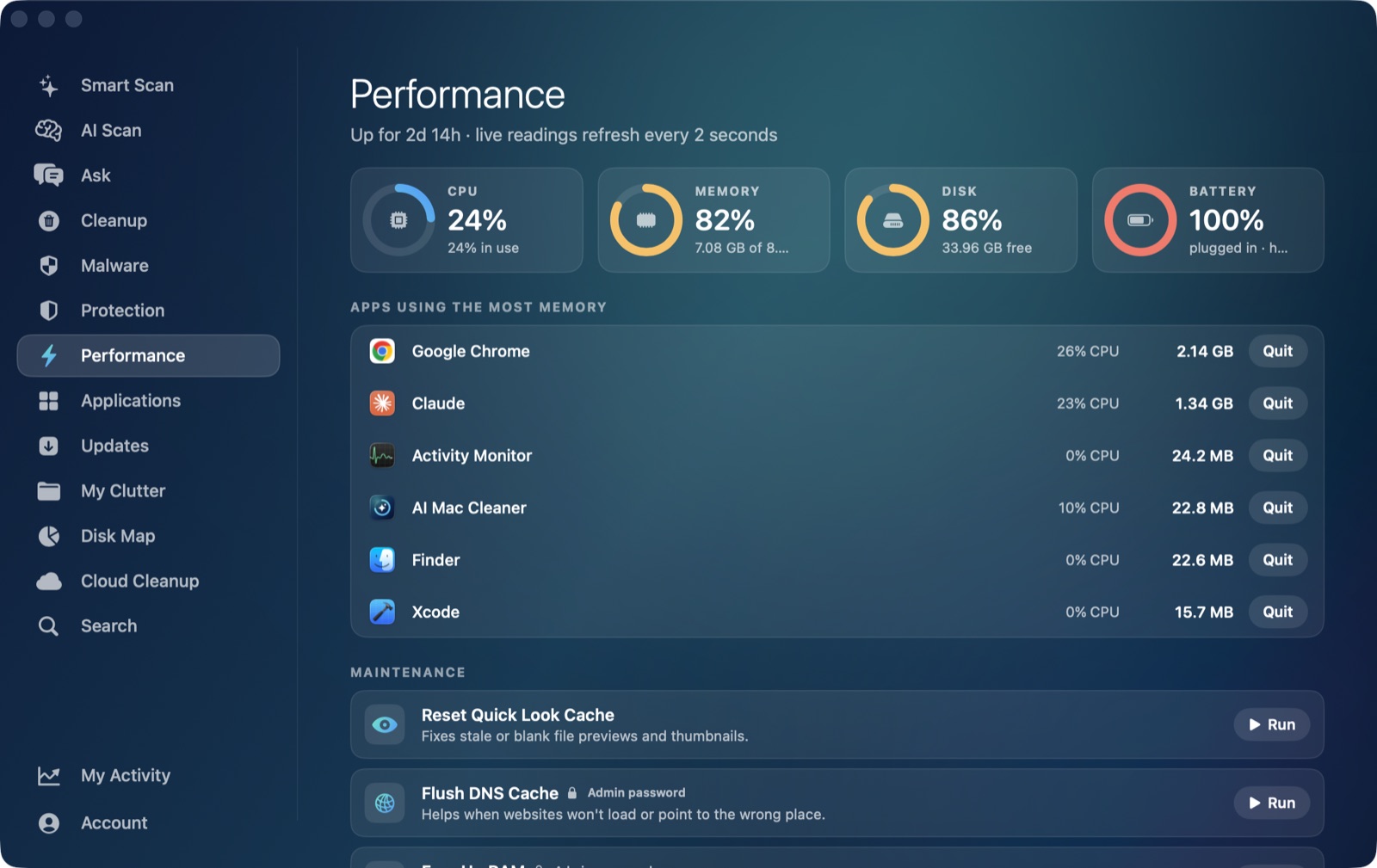
Worth being direct here, the same way we are for coreaudiod and trustd: AI Mac Cleaner's Performance module shows a live, overall CPU percentage for the whole Mac, which does reflect whatever backupd is doing system-wide during a backup. Its ranked heaviest apps list, though, only covers regular, Dock-visible applications — built from macOS's own list of foreground apps — so backupd never appears there by name, the same gap as any other background daemon. AI Mac Cleaner also has no Time Machine management feature of its own: no local-snapshot viewer, no tmutil wrapper, nothing that starts, stops or configures a backup. If you want to manage Time Machine itself rather than just confirm a backup is the reason CPU is elevated, System Settings and tmutil are the right tools, not this app.
Where AI Mac Cleaner does help is the separate, related question of what's actually filling up the drive Time Machine is backing up in the first place — a smaller, tidier home folder means a smaller, faster backup on every cycle. Finding duplicate files and finding what's large on your Mac generally are both a step upstream of backupd ever having to work this hard.
AI Mac Cleaner has a 7-day free trial with every feature unlocked and no card required, plans from $6.99/mo after.
Frequently asked questions
Is backupd a virus or something I should remove?
No — it's Apple's own Time Machine backup daemon, present on any Mac with Time Machine enabled. High CPU from it is expected whenever a backup is actually running.
How do I check if backupd's high CPU is actually from a backup in progress?
tmutil status in Terminal, or System Settings → General → Time Machine on macOS 13 and later, both show live backup progress directly rather than making you guess from CPU usage alone.
Can I stop a Time Machine backup that's taking too long?
Yes — tmutil stopbackup cancels the backup currently in progress without disabling Time Machine. The next scheduled hourly backup still runs normally afterward.
Why would backupd run for an unusually long time?
The most common reasons are a first backup to a new destination (which has to copy everything, not just changes), a large amount of recently changed data, a struggling or failing backup drive, or another heavy disk operation competing for the same resources at the same time.
Does AI Mac Cleaner manage Time Machine or show backupd by name?
AI Mac Cleaner's Performance module's overall CPU reading does reflect backupd's activity as part of the system-wide total, which is the quickest way to confirm a backup is really what's driving a CPU spike. Its ranked heaviest-apps list won't name backupd specifically, since that only covers regular, Dock-visible foreground apps, and the app has no Time Machine management feature of its own — System Settings and tmutil are the right tools for starting, stopping or configuring backups.