 AI Mac Cleaner
VS Code Cache Clear on Mac: Get Back the Disk Space
VS Code's cache and per-project workspaceStorage folders live under Application Support, not Library/Caches — which is exactly why they quietly grow for years without anything clearing them.
If you use Visual Studio Code daily, ~/Library/Application Support/Code has been accumulating data since the day you installed it — extension downloads, compiled startup code, and a folder for every single project you've ever opened. None of it is dramatic by itself, but across years of use and dozens of projects, it adds up to a real, easily forgotten chunk of disk space.
What's actually taking up the room
A few folders inside ~/Library/Application Support/Code account for most of the growth:
CachedExtensionVSIXs— the downloaded.vsixinstaller archives for every extension you've installed or updated. The extensions themselves run from elsewhere; these are just the leftover install packages, piling up with every update.CachedDataandCache— compiled, pre-processed startup code (V8 bytecode) that lets VS Code launch faster. It's rebuilt automatically whenever it's missing or out of date.workspaceStorage— one subfolder per project you've ever opened in VS Code, holding that project's editor state (open tabs, some extension data scoped to that workspace). Projects you opened once years ago and never touched again still have a folder sitting here.logs— diagnostic output, which can grow noticeably if an extension has been crashing or erroring repeatedly in the background.
workspaceStorage in particular tends to be the biggest single contributor once you've worked across more than a handful of projects, since nothing ever prunes old entries automatically.
Clearing it safely
- Quit VS Code first. Clearing any of these folders while VS Code is running risks it rewriting partial data back on top of what you just removed.
- Check sizes before deciding what to clear:
du -sh ~/Library/Application\ Support/Code/*from Terminal gives a quick breakdown of which folders are actually large on your Mac specifically. - Clear
CachedExtensionVSIXsandCache/CachedDatafirst — these are the lowest-risk, since VS Code regenerates them on the next launch with no visible loss beyond a slightly slower first startup while it recompiles. - Go through
workspaceStorageby size, rather than clearing the whole folder at once, and remove the subfolders for projects you're genuinely done with. Each one resets that specific project's saved editor state (which tabs were open, scroll position) — not your actual code, settings or extensions, just that project's remembered UI state in VS Code. - Leave
User/Historyalone if you rely on it — that's VS Code's local file history feature, a separate record of past edits to files you've opened, not cache data in the same sense as the rest.
Expect a slower first launch after clearing
Because CachedData and Cache hold precompiled startup code, deleting them means VS Code has to recompile that code from scratch the next time it launches. That one launch is noticeably slower than usual; every launch after that is back to normal once the cache rebuilds itself.
Why a general Mac cleaner doesn't reach this one
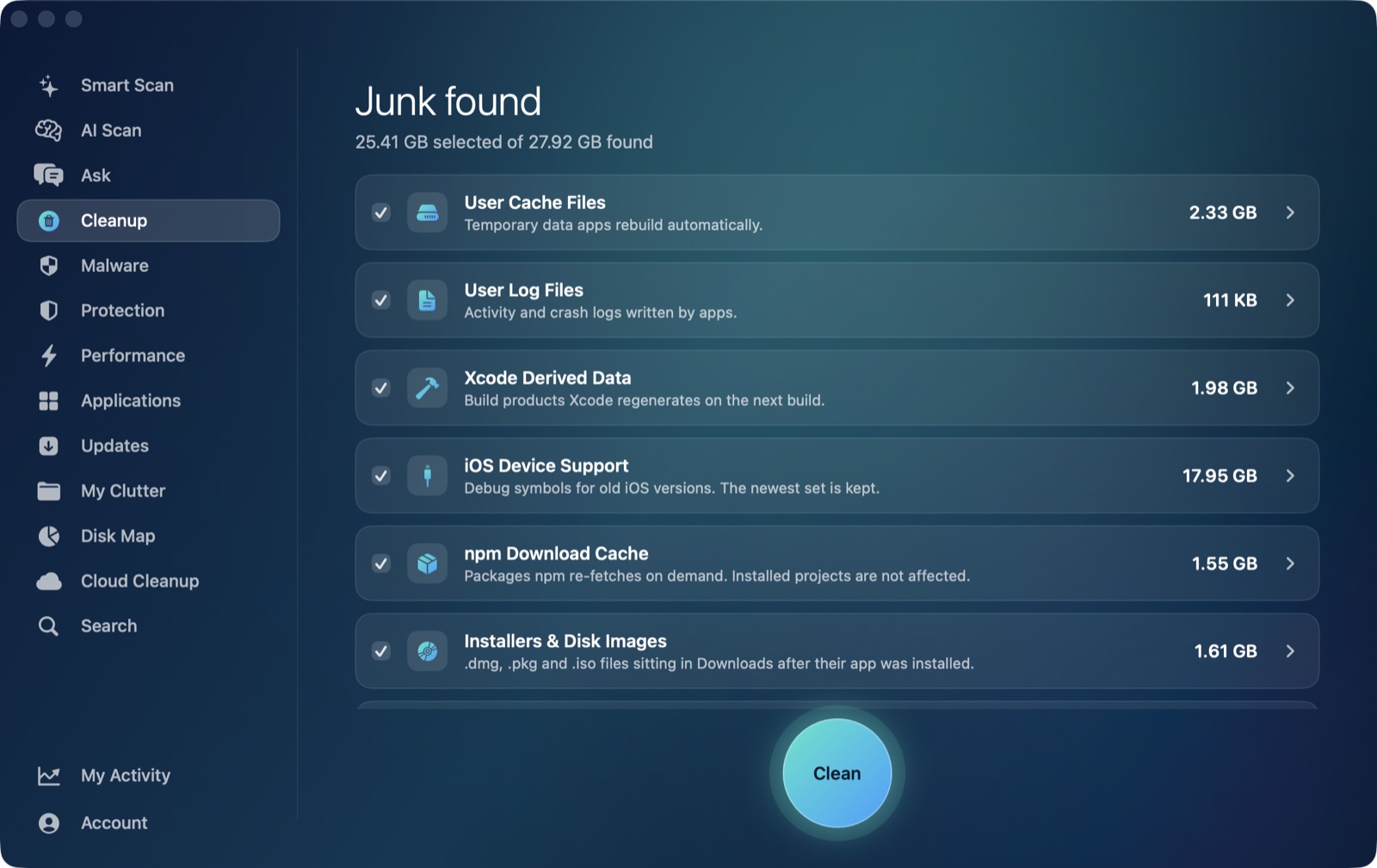
Worth being direct about where AI Mac Cleaner's Cleanup module actually looks, the same way we are for Gradle's cache and Cargo's: the module's User Cache Files category scans direct children of ~/Library/Caches only — the folder most GUI apps use for genuinely disposable cache data. VS Code's cache and workspaceStorage live under ~/Library/Application Support/Code instead, a completely different top-level folder that holds a mix of settings, extension data and cache together. That means the User Cache Files category never sees any of it, the same blind spot any cleaner scoped to the standard caches folder runs into — and in this case, a reasonable one, since Application Support is also where VS Code keeps things you'd genuinely want to keep (synced settings, installed extensions), mixed in with the parts that are safe to clear.
What the app can help with: point Disk Map's treemap at ~/Library/Application Support/Code to see exactly which subfolder has actually grown large on your Mac before you touch anything by hand, or use Search to find the Code folder directly. Either way, clearing it still means going into Terminal or Finder yourself and removing the specific subfolders above — AI Mac Cleaner doesn't offer a dedicated VS Code category the way it does for npm's cache or Xcode's DerivedData.
When it's actually worth doing
If you've used VS Code across many short-lived projects — cloning a repo to look at it once, trying out a tutorial, a throwaway script folder — workspaceStorage accumulates one folder per project indefinitely, and that's usually the single biggest win here. CachedExtensionVSIXs is worth a look too if you update extensions often, since old installer archives for versions you're no longer running serve no purpose at all.
For the same shape of problem in other developer tools, see clearing Gradle's cache and clearing Cargo's cache — same pattern (a shared, unbounded store outside the standard caches folder), different tool.
AI Mac Cleaner has a 7-day free trial with every feature unlocked, no card required, and plans from $6.99/mo after.
Frequently asked questions
Where is VS Code's cache on a Mac?
~/Library/Application Support/Code, which holds several folders worth clearing — CachedExtensionVSIXs, Cache, CachedData, workspaceStorage and logs — alongside settings and extension data you'd want to keep.
Will clearing VS Code's cache delete my settings or extensions?
No, as long as you stick to the folders named above. Your settings, keybindings and installed extensions live elsewhere in the same Application Support folder; clearing the cache-specific subfolders doesn't touch them.
What is workspaceStorage and is it safe to clear?
It's a folder per project you've opened in VS Code, holding that project's remembered editor state (open tabs, scroll position, some workspace-scoped extension data). Clearing an individual project's folder resets only that state for that project — not your code, settings or extensions — and VS Code recreates it next time you open that project.
Why is VS Code slow to launch right after I clear its cache?
CachedData and Cache hold precompiled startup code that VS Code normally reuses to launch faster. Clearing them means it has to recompile that code once, making the very next launch slower; launches after that return to normal speed.
Can AI Mac Cleaner clear VS Code's cache automatically?
Not as a dedicated category. Its User Cache Files category only scans ~/Library/Caches, and VS Code's cache lives outside that folder under ~/Library/Application Support/Code. Disk Map and Search can help you locate the folder; clearing the specific subfolders is still a manual step.