AI Mac Cleaner
How to Uninstall Discord Completely on a Mac
Discord's updater, cache and GPU shader cache keep writing to your Mac even after you've dragged the app to the Trash. Here's how to uninstall Discord completely, leftovers included.

If you want to uninstall Discord completely on a Mac, dragging it from /Applications to the Trash removes the app itself, but Discord is known for leaving behind one of the chunkier support folders of any chat app — cached images and emoji, a GPU shader cache, and files from its own self-updater — all sitting in your user Library folder, untouched by that one drag-and-drop.
Why dragging to the Trash isn't enough
Discord updates itself automatically in the background rather than through the App Store or a separate installer, which means it's constantly writing new version files and update logs to disk even when you haven't touched a setting. Combine that with heavy local caching of server icons, emoji, stickers and GPU-accelerated rendering data for a smoother interface, and Discord accumulates more in its support folders over time than most chat apps — none of which goes away when you delete the app bundle itself.
Where Discord's leftovers live
The same four general locations hold Discord's data outside its own app bundle:
~/Library/Preferences— a small settings file for your window layout and app-level preferences.~/Library/Caches— cached images, emoji, stickers and a GPU shader cache Discord keeps so its interface renders smoothly; this tends to be the single largest leftover folder for an active Discord user.~/Library/Application Support— Discord's main data folder, including its self-updater's downloaded version files and module cache — the part responsible for Discord updating itself silently in the background.~/Library/Logs— diagnostic logs from past sessions, including crash reports.
A full uninstall means clearing the Discord-specific folder inside each of those four locations. The same four-folder pattern applies to any app you remove — Discord's self-updating design is just why its folders tend to grow larger than most.
Finding them by hand
Open Finder, press Shift-Command-G, and check each of the four paths above for a folder named "discord" (lowercase, as Discord's own folders are typically named) or matching its developer identifier. The Application Support folder in particular is worth checking closely, since Discord's updater machinery can leave behind several versions' worth of files if it's been a while since a clean start.
How AI Mac Cleaner handles it instead
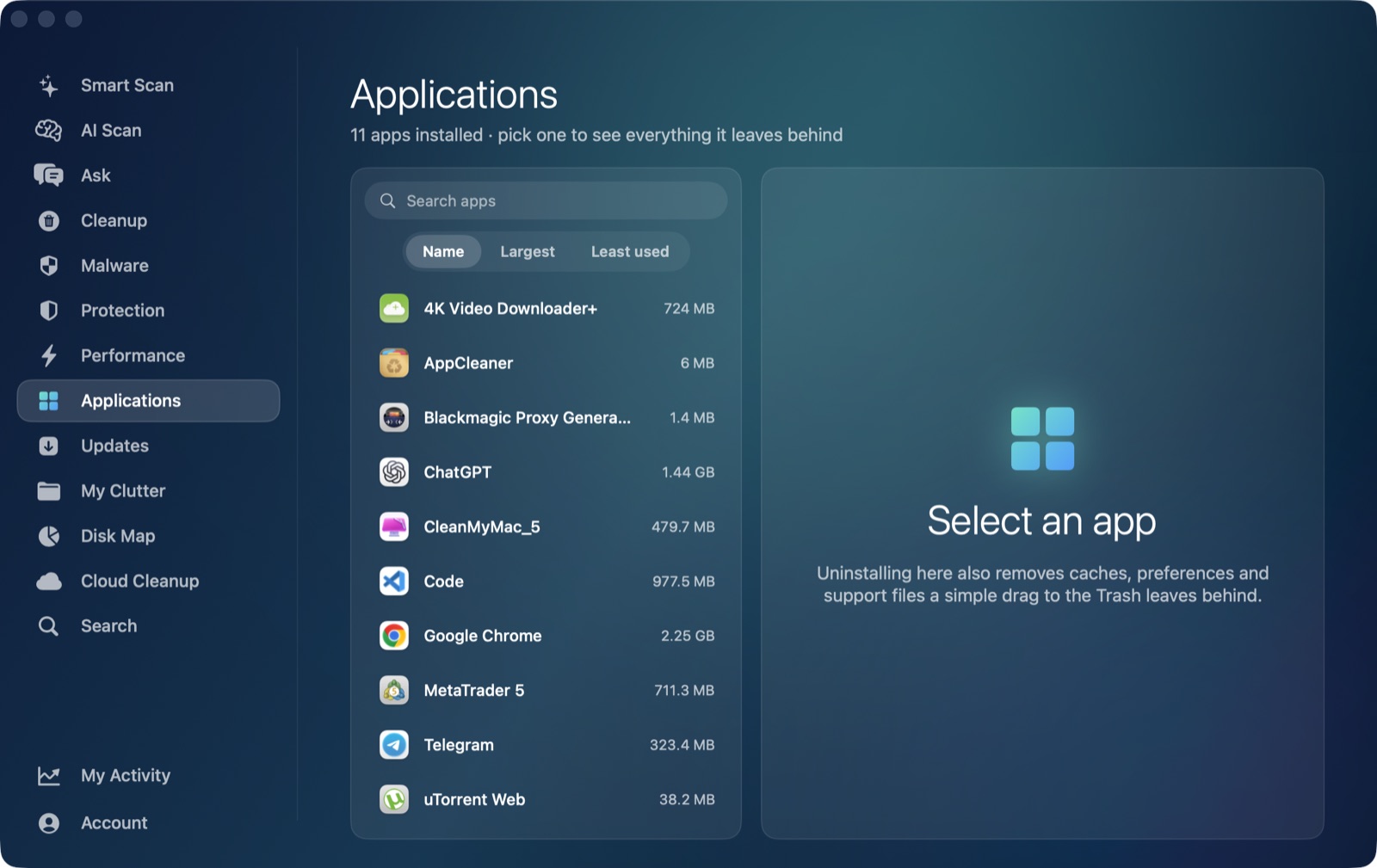
AI Mac Cleaner's Applications module works as an uninstaller that also finds an app's leftovers in ~/Library, matching by the app's own identifier rather than guessing from its display name. Point it at Discord and it finds the preferences, cache (including that shader and image cache), updater files and logs together, shows you the list before anything moves, and clears the lot in one confirmed action — instead of manually digging through an updater's module cache to work out what's safe to remove.
One thing it deliberately never does: list Apple's own apps, itself, or Claude as something you could uninstall. It's built for clearing out third-party software you installed and no longer want.
Nothing is deleted outright
Every removal in AI Mac Cleaner goes through its Trash-only remover, which also refuses a fixed list of protected system paths — so if you remove Discord and change your mind, everything is still recoverable from the Trash until you empty it yourself, on purpose.
If you'd rather not hunt through an updater's cache files by hand, AI Mac Cleaner's Applications module does the finding for you, on Discord or anything else installed. There's a 7-day free trial with every feature unlocked and no card required, and plans start at $6.99/mo after that. See how it works.
Frequently asked questions
Does deleting Discord from Applications remove its cache and update files too?
No. It removes the app bundle itself, but Discord's cache, preferences, updater files and logs stay in ~/Library until you remove them separately.
Why does Discord's cache folder get so large?
Discord caches server icons, emoji, stickers and a GPU shader cache to keep its interface responsive, and its self-updater keeps version files in Application Support. Both grow the longer and more actively you use it, across however many servers you're in.
Is it safe to delete Discord's leftover folders myself in Finder?
Yes, once the app is already removed — match the folder by Discord's developer identifier where possible, and move things to the Trash rather than deleting directly so a mistake stays recoverable.
How is AI Mac Cleaner's uninstaller different from just dragging Discord to the Trash?
It removes the app and then specifically searches ~/Library for Discord's own leftover folders by identifier, shows you the list before anything happens, and moves everything to the Trash rather than deleting it outright — one confirmed action instead of digging through updater and cache files by hand.
Will reinstalling Discord later lose anything important if I clear its leftovers first?
No — your messages, servers and settings live on Discord's own servers and reload once you sign back in. The local cache and updater files are just a local speed-up copy, which is exactly why they're safe to clear.