AI Mac Cleaner
Is It Safe to Delete Old Lightroom and Photoshop Installers From Downloads?
Once an app is installed, its .dmg or .pkg installer in Downloads is just a leftover copy. Here's when it's safe to delete, and when to keep it.

Downloads folders have a way of becoming a quiet graveyard of installers nobody remembers downloading. For a photographer, that usually means Lightroom and Photoshop update packages, plug-in installers for Lightroom presets or Photoshop panels, and — alongside them — zipped batches of exported photos sitting there since the last delivery. None of it looks urgent to deal with, which is exactly how it adds up to several gigabytes without anyone noticing.
What's actually in there
Two different things tend to collect in the same folder, and they're not the same kind of file:
Installers — .dmg, .pkg, .mpkg and .xip files for Lightroom Classic, Photoshop, Creative Cloud updates, or any Lightroom/Photoshop plug-in you've installed. Once the install finishes, the app itself lives in /Applications; the installer file in Downloads did its one job and now just sits there.
Archives — .zip and similar files, which for a photographer are more often a batch of exported JPEGs a client or a stock site sent back as a delivery, or an exported set you zipped up yourself before uploading somewhere.
Installers: generally safe once the app is confirmed working
If Lightroom or Photoshop is installed and opening normally, the .dmg or .pkg that installed it has done everything it's going to do. macOS doesn't read back from the original installer file after installation — the app is a fully separate, self-contained copy in /Applications. The one real exception: if you're mid-update and haven't yet confirmed the new version opens correctly and your catalogs still load, it's worth keeping the installer until you have, purely as an easy reinstall if something goes wrong. Once you've confirmed it's working, the installer is just a leftover copy.
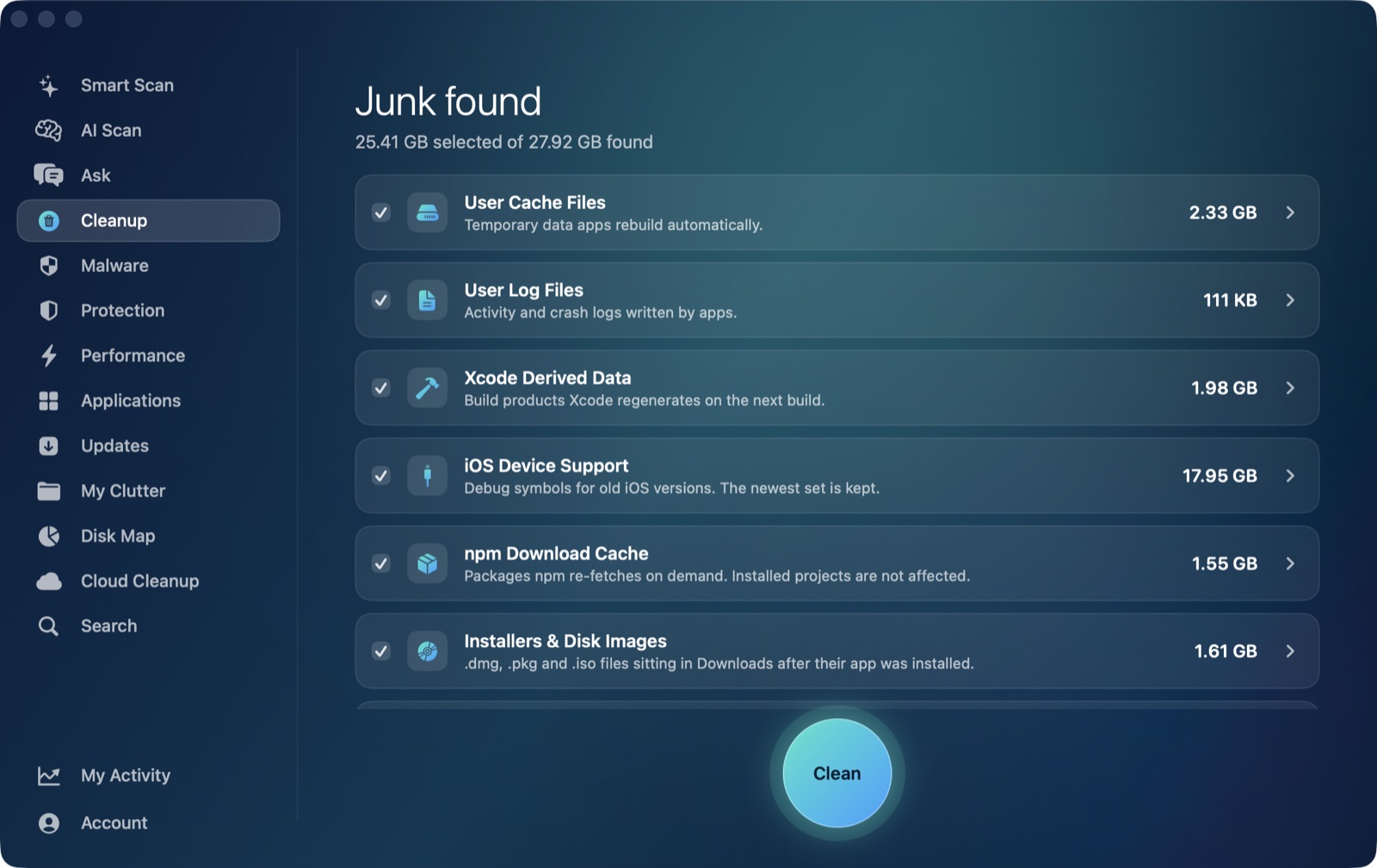
AI Mac Cleaner's Installers & Disk Images category finds exactly these files in Downloads — .dmg, .pkg, .iso, .mpkg and .xip — and lists them so you can clear the ones you no longer need in one pass, rather than scrolling through Downloads manually trying to remember which installer belongs to which already-installed app.
Archives: worth a look before clearing, not an automatic delete
Zipped exports are a different story, which is why AI Mac Cleaner treats them differently: the Archives in Downloads category is review-only — it never gets auto-cleaned, and nothing in it is pre-selected for removal. That's deliberate. An installer's content is replaceable (re-download it); a zipped delivery of edited photos might be the only compressed copy you have if you haven't separately backed up the unzipped files elsewhere. The category surfaces these .zip files so you can see what's taking up space, but the decision to remove each one stays yours — check it's been delivered, unzipped somewhere safe, or otherwise not something you'd need again before clearing it.
A quick rule of thumb
- Installer, app confirmed working → safe to clear.
- Installer, you just updated and haven't confirmed everything still opens correctly → keep it a few more days.
- Zip of exported photos, already delivered and unzipped elsewhere → safe to clear.
- Zip of exported photos, you're not sure it's backed up anywhere else → keep it until you are.
Beyond Downloads
Installers and archives are only one corner of what tends to build up on a working photographer's Mac. If storage is tight for other reasons, Lightroom and Photoshop's Camera Raw cache is a much larger and less obvious culprit, and duplicate exports sitting around from old batch jobs are worth a separate pass with a content-based duplicate finder.
AI Mac Cleaner has a 7-day free trial with every feature unlocked and no card required, plans from $6.99/mo after.
Frequently asked questions
Will deleting a Lightroom installer break my existing installation?
No. Once Lightroom is installed, it runs as its own copy in /Applications and doesn't read from the original .dmg or .pkg again. Deleting the installer only removes your convenient reinstall file, not anything the running app depends on.
What if I need to reinstall later?
You'd re-download the installer from Adobe. For most apps that's a quick download, which is why keeping every old installer "just in case" usually isn't worth the disk space.
Should I delete zip files from Downloads the same way?
Not automatically — AI Mac Cleaner keeps Archives in Downloads as a review-only category for this reason. Check a zip has been delivered or unzipped somewhere safe before clearing it, since it might be your only compressed copy of an export.
Does this apply to Creative Cloud's own installer files too?
Yes — the same logic applies to any .dmg, .pkg or .xip installer once the install it was for has completed and you've confirmed the app works.
Are these files sent to the Trash or deleted outright?
To the Trash. AI Mac Cleaner never deletes files directly — everything it removes goes to the Trash first, so a mistaken removal is still recoverable until you empty it.