 AI Mac Cleaner
Fseventsd High CPU Mac: What It Is and What to Check
A fseventsd high cpu mac report usually settles fast on its own, but there's a documented stuck-high pattern tied to Time Machine and Spotlight worth checking first.
A fseventsd high cpu mac report almost always traces back to one of a few things worth understanding before you worry: fseventsd is a core macOS system daemon, not something installed without your knowledge, and under normal conditions it uses very little CPU. A short burst is expected after a lot of file activity; a sustained, stuck-high reading is unusual enough to be worth understanding, though it's a documented pattern rather than a sign of malware.
What fseventsd actually does
fseventsd implements the FSEvents API: a low-level system for telling apps which files and folders changed, without those apps having to constantly re-scan the disk themselves. Spotlight uses it to know what needs reindexing. Time Machine uses it to know what changed since the last backup, so it can back up only the difference instead of everything. iCloud Drive sync, version control tools and any app watching a folder for changes all lean on the same mechanism. Every one of those relies on fseventsd writing a continuous log of filesystem events, which is why it's a background daemon with no settings panel of its own.
Each writable volume on your Mac keeps its own hidden, low-level event log for this — a .fseventsd folder at the root of the volume — separate from anything in your home folder. It's part of how the filesystem itself tracks changes, not a user cache you'd normally browse or clear by hand.
When fseventsd high CPU is normal
A burst is expected around:
- Copying, deleting or moving a large number of files at once — each change is an event
fseventsdhas to log, so a big batch operation (unpacking an archive, syncing a folder, a backup job) means a lot of events in a short window. - Right after a macOS update, similar in shape to Spotlight's post-update reindex — the event log can need to catch up once the update finishes touching system files.
- A Time Machine backup actually running, since Time Machine's incremental-backup design depends directly on
fseventsd's change log to figure out what's new.
In these cases, CPU use should settle back down within a few minutes once the burst of file activity clears.
The documented stuck-high pattern
Multiple independent how-to guides (iboysoft, PCRisk, among others) describe the same recurring scenario people actually search for: fseventsd pegged near 100% CPU for an extended stretch, not just a brief spike. The causes these guides point to most consistently are an active Time Machine backup that's taking unusually long, a Spotlight index that's stuck rather than progressing normally, or — less commonly — a failing disk or corrupted filesystem structure triggering a flood of change events that never settles. None of these guides describe it as malware; fseventsd itself is a legitimate Apple system process, so a stuck-high reading points to one of those underlying causes rather than to the process itself being compromised.
What to check if it stays high
- Check whether Time Machine is mid-backup. Open System Settings → General → Time Machine, or just wait if a backup is clearly running — this resolves on its own once the backup finishes.
- Check Spotlight's indexing progress. Click the Spotlight icon in the menu bar; a dot inside it means indexing is still in progress.
mdutil -s /from Terminal reports indexing status for the whole disk directly. - Restart the Mac.
fseventsdrestarts cleanly, and a restart clears whatever local event-log state was stuck, with nothing to lose. - Run Disk Utility's First Aid on the affected volume if the high CPU persists with no backup or indexing running — a corrupted filesystem is a less common but real trigger these guides point to, and First Aid is the safe way to rule it out.
- Exclude a specific noisy folder from Spotlight (System Settings → Siri & Spotlight → Spotlight Privacy) if you can trace the activity to one location that changes constantly, like a build output folder or a sync client's working directory.
Don't force-quit it
fseventsd is a system daemon macOS restarts immediately if you force-quit it, so nothing is actually freed — whatever was mid-log just has to catch back up once it restarts, which can make the underlying burst take even longer to settle rather than shorter.
Where AI Mac Cleaner fits in
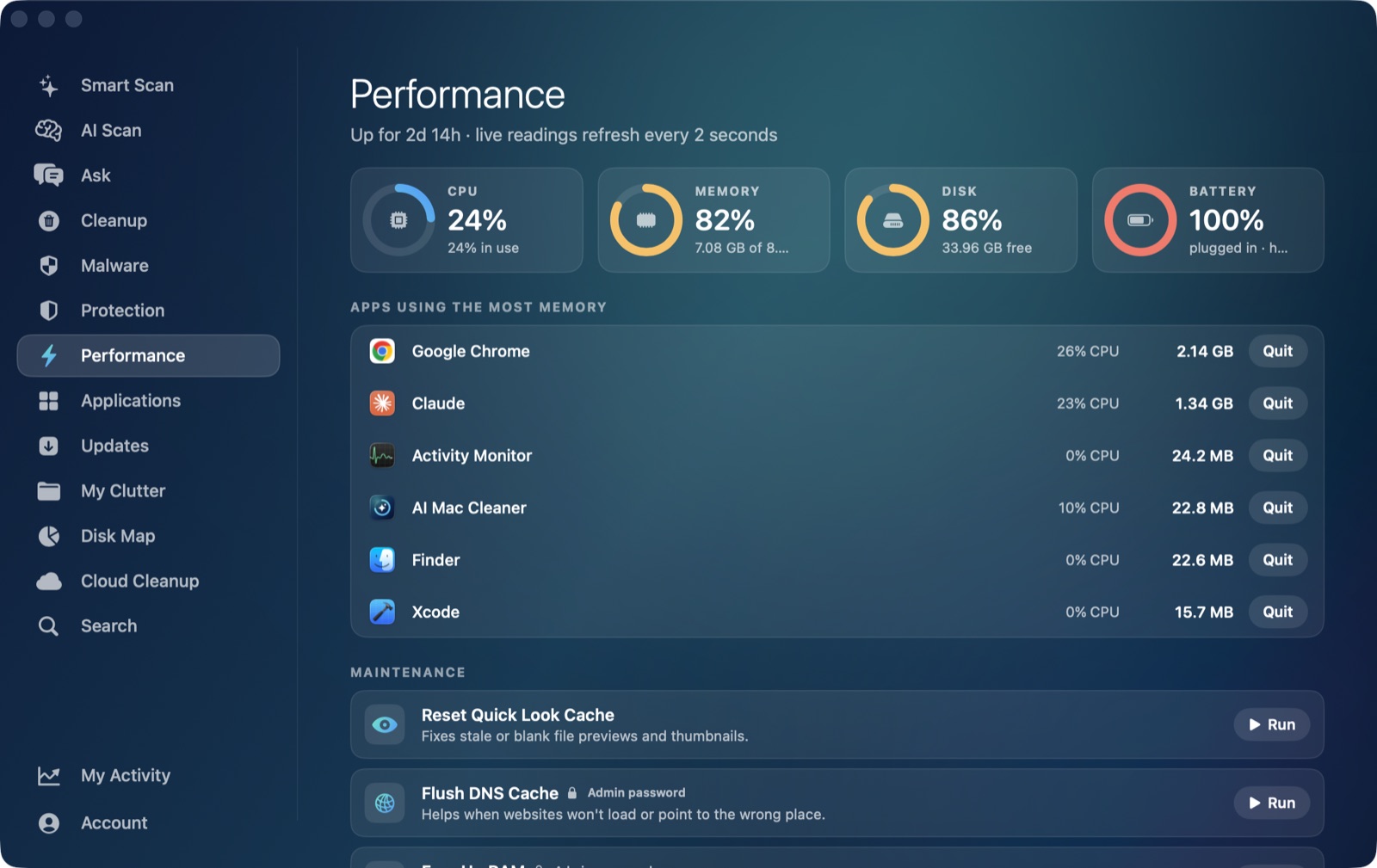
AI Mac Cleaner's Performance module gives you a live, overall CPU percentage for the whole Mac, which does reflect whatever fseventsd (or anything else) is doing system-wide at that moment. Its ranked heaviest apps list, though, only shows regular, Dock-visible applications — the same honest gap as the app's other by-process posts in this cluster: backupd and sharingd aren't named in that list either, for the same reason — background system daemons simply aren't what that list is built to show.
Where the app does help directly: if the actual cause turns out to be Spotlight reindexing a huge, newly-added folder, AI Mac Cleaner's Disk Map can show you exactly which folder is that large in the first place, and the Cleanup module's Xcode Derived Data and Simulator Caches categories clear two of the more common sources of sudden, large file churn for developers specifically. For everyone else, confirming overall CPU is actually elevated right now, rather than guessing, is the practical first step either way.
AI Mac Cleaner has a 7-day free trial with every feature unlocked and no card required, plans from $6.99/mo after.
Frequently asked questions
Is fseventsd a virus?
No — it's Apple's own File System Events daemon, present on every Mac, and it's doing legitimate work tracking filesystem changes for Spotlight, Time Machine and similar features. A sustained high-CPU report points to one of those features running long or stuck, not to malware.
Why is fseventsd using so much CPU during a Time Machine backup?
Time Machine's incremental backups depend directly on the change log fseventsd maintains to work out what's new since the last backup. A large batch of recent changes means more events to process, which shows up as higher CPU use for the duration of that backup.
Is it safe to force-quit fseventsd?
You can, but macOS restarts it immediately since it's a core system daemon, so nothing is freed — any event logging in progress has to catch back up once it restarts, which doesn't help resolve a genuinely long-running burst any faster.
Does AI Mac Cleaner show fseventsd in its process list?
Not by name. Its Performance module's heaviest-apps list only ranks regular, Dock-visible foreground apps, the same scope Activity Monitor's "My Processes" filter would exclude it from — the module's overall CPU percentage does reflect fseventsd's activity as part of the system-wide total, but Activity Monitor is the tool for seeing it specifically by name.
What's the hidden .fseventsd folder I've seen at my disk's root?
It's the low-level event log FSEvents itself maintains for the whole volume, separate from anything in your home folder — part of how the filesystem tracks changes, not a user cache meant to be browsed or cleared by hand.