AI Mac Cleaner
How to Clear Chrome Cache on Mac
Two real ways to clear Chrome cache on Mac — Chrome's own Clear browsing data, and AI Mac Cleaner's general user-caches category — and what each one actually touches.

There are two genuinely different ways to clear Chrome cache on a Mac, and they don't do the same thing. One is built into Chrome itself and also wipes cookies and browsing history unless you specifically untick them. The other is a general-purpose cache cleanup that only touches the cache folder, leaves your logins and history alone, and happens to cover Chrome along with every other app that keeps a cache. Knowing which one you're using matters, because "clear Chrome cache" can mean either a five-second fix for a slow or glitchy page, or a sign-out-of-everything reset you didn't want.
Chrome's own Clear browsing data
Inside Chrome: Settings → Privacy and security → Clear browsing data. This is Chrome's own tool, and it's thorough by design — it can clear cached images and files, cookies and site data, and browsing history, each as a separate checkbox you control. That thoroughness is exactly the catch: if you leave cookies and site data ticked (it's ticked by default in the "basic" view), clearing the cache the obvious way also signs you out of every website you were logged into. If you only want the cache gone and nothing else, you need to specifically untick the other boxes before confirming, every time.
The general-purpose alternative: user caches
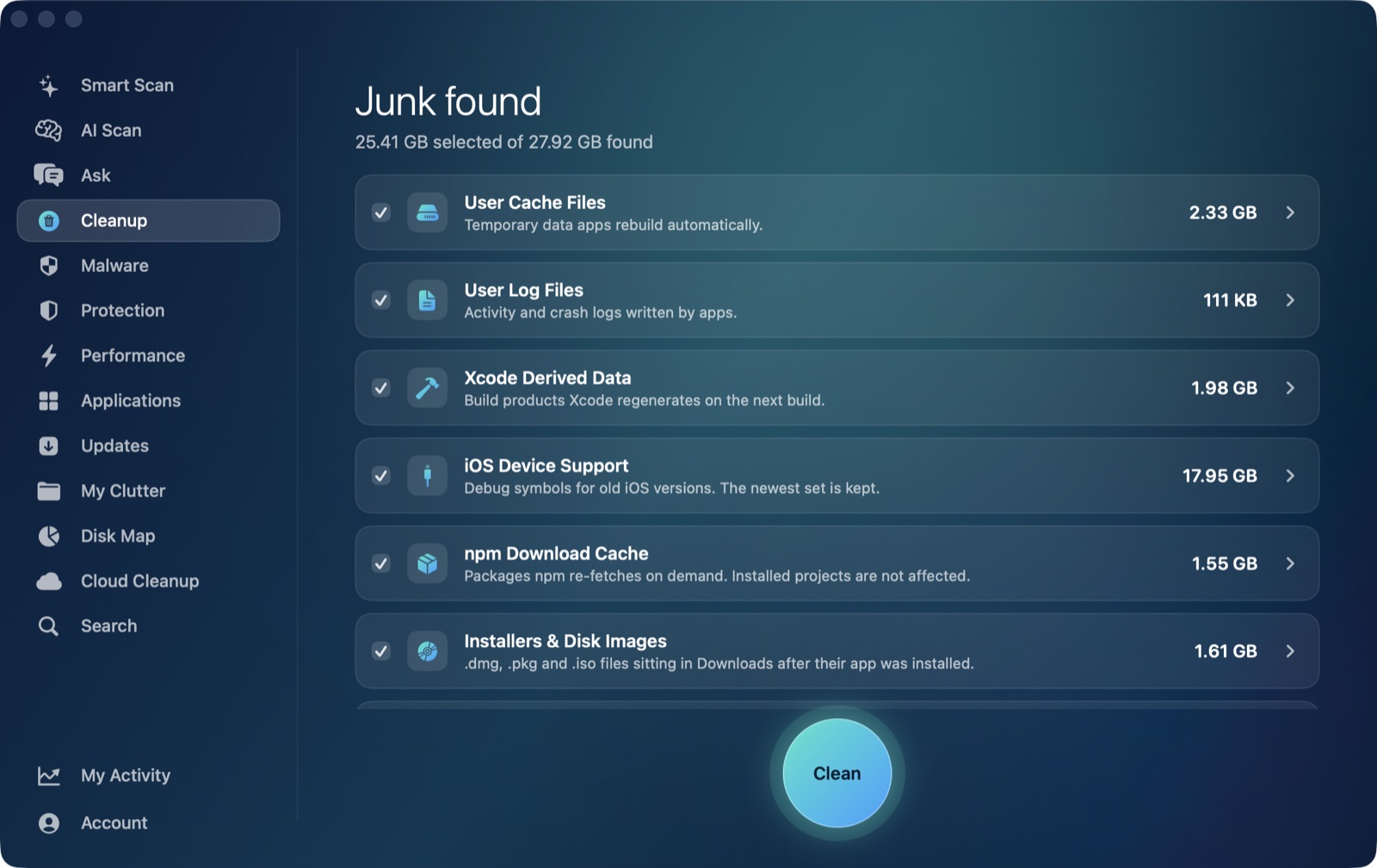
AI Mac Cleaner doesn't have a Chrome-specific scanner, and it's worth being upfront about that rather than implying otherwise. What it has is a user caches category inside the Cleanup module — one of its 13 cleanup categories — which scans ~/Library/Caches and clears the cache folder belonging to each app that has one. Chrome is one of dozens of apps that keep a cache there, so clearing user caches clears Chrome's cache folder along with everything else that's accumulated — old Slack attachments, Spotify's offline cache, whatever else you have installed — in a single pass, sized and listed by category before anything moves.
The meaningful difference from Chrome's own tool: this category only touches the cache folder. It has no concept of cookies, saved passwords or browsing history, so running it doesn't log you out of anything or clear your history, because it never goes near those files in the first place. That's a narrower, more boring kind of clean, and for most "Chrome feels sluggish" or "a page is stuck rendering wrong" situations, boring is exactly what you want — the cache rebuilds the moment you reopen Chrome regardless of which route you used to clear it.
Which one should you actually use
- Chrome's own Clear browsing data, with only "Cached images and files" ticked, if you specifically want to clear just Chrome's cache and are comfortable managing the checkboxes yourself.
- AI Mac Cleaner's user caches category, if you want Chrome's cache cleared as part of a routine pass across every app's caches at once, without touching logins, history or cookies, and without having to remember which boxes to untick in Chrome's own dialog.
Both are legitimate; they solve slightly different problems. If what you actually want is "make Chrome behave, without logging me out of anything," the general caches route is the lower-risk default because there's nothing to accidentally leave ticked.
Safety either way
Whichever you use, nothing about a cache clear should be destructive, and AI Mac Cleaner treats it that way: every removal goes through a Trash-only remover rather than deleting files directly, and user caches is one of the categories eligible for Auto Clean, since a cache folder regrowing on its own is exactly the low-risk, self-healing kind of junk that's safe to handle automatically. If you'd rather see exactly what's in there first, the category lists size per app before you confirm anything — you're never clearing a black box.
For the fuller picture of what's safe to clear on a Mac beyond just caches — and what isn't — see is it safe to clear caches on a Mac. If you want to see the caches category for yourself, AI Mac Cleaner has a 7-day free trial with everything unlocked and no card required, with plans from $6.99/mo after that.
Frequently asked questions
Will clearing Chrome's cache log me out of my accounts?
Only if you also clear cookies and site data at the same time — Chrome's "Clear browsing data" dialog lets you untick that separately from "Cached images and files." A general cache-only cleanup, like AI Mac Cleaner's user caches category, never touches cookies at all, so it can't log you out.
Does AI Mac Cleaner have a Chrome-specific cache cleaner?
No, and it's worth being clear about that: it has a general user caches category that scans ~/Library/Caches and clears each app's cache folder, which includes Chrome's among many others' — not a scanner built specifically around Chrome's internals.
Why does Chrome's cache come back after I clear it?
Caches are meant to regrow. Chrome rebuilds cached images, scripts and page data as you browse, because that's what makes pages load faster the second time — a cache filling back up isn't a sign anything went wrong, it's the cache doing its job.
Is clearing Chrome's cache safe to automate?
Clearing a cache folder itself is low-risk since it's rebuilt automatically, which is why AI Mac Cleaner includes user caches among its Auto Clean-eligible categories. Clearing cookies and history is a different, more consequential action and isn't something either tool does automatically.
Does clearing cache speed up Chrome?
It can help if a specific cached file is corrupted or a page is stuck showing stale content, but a cache clear isn't a general speed fix — if Chrome itself is using a lot of CPU or memory, that's a performance question, not a storage one.