 AI Mac Cleaner
What to Clean Up Before Migrating to a New Mac
Migration Assistant copies everything by default — clean up old mac before migrating to new mac junk, duplicates and leftovers first, or your brand-new iMac starts out as full as the old one.
Apple's new M6 iMac started shipping November 6, and if one landed on your desk this week, the next step is Migration Assistant — the macOS tool that copies your apps, files and settings from the old Mac to the new one over Wi-Fi, a cable, or a shared backup. It's fast and it's thorough, which is exactly the problem: by default, it copies everything, including years of caches, duplicate photo exports and leftover files from apps you uninstalled two Macs ago. Clean up old mac before migrating to new mac and you start the new one with only the files that are actually yours, not a faithful clone of every piece of junk the old one accumulated.
Why "just migrate everything" is the wrong default
Migration Assistant doesn't distinguish between a document you wrote last week and a cache folder an app rebuilt automatically — both are just files to it, and both get copied. That matters more than it used to: even though the new M6 iMac ships with more storage headroom than the model it replaces, an SSD that starts at 60% full because of inherited junk is still 60% full, and you'll be clearing the same clutter later anyway, just on a machine you spent money on being able to use fully. Doing the cleanup before the transfer, on the old Mac, means the migration itself finishes faster too — Migration Assistant has to move less data over the network either way.
What's actually safe to leave behind
None of this is your data. It's the overhead every Mac accumulates just from being used for a few years, and none of it needs a second life on the new machine:
- App caches — AI Mac Cleaner's Cleanup module covers 13 categories on the old Mac: user caches, Xcode DerivedData, old iOS Device Support files, Simulator caches, npm cache, installer and disk-image leftovers, and more. Every one of these rebuilds itself automatically the first time the matching app runs again — there's nothing to carry over, and carrying it over just means re-rebuilding it on day one anyway.
- Exact duplicate files — if you've got the same photo export, the same downloaded PDF or the same video file saved in three different folders from three different "just in case" moments, My Clutter finds them by hashing file contents (not just matching names) and shows you the exact duplicates so you can keep one copy instead of migrating three.
- Leftovers from apps you already uninstalled — deleting an app from the Applications folder rarely removes its support files, caches and preferences; they just sit there. The Applications tab shows every installed app alongside what it left behind from past removals, so you can see what's actually still on disk before the migration decides it's worth copying.
- Old iPhone backups and disk images you forgot about — these sit in the review-only part of Cleanup (nothing here gets swept automatically, by design) specifically because they can be large and because only you know if you still need that particular backup or installer image. Check them once before the move, not after.
Find the big stuff first, then decide
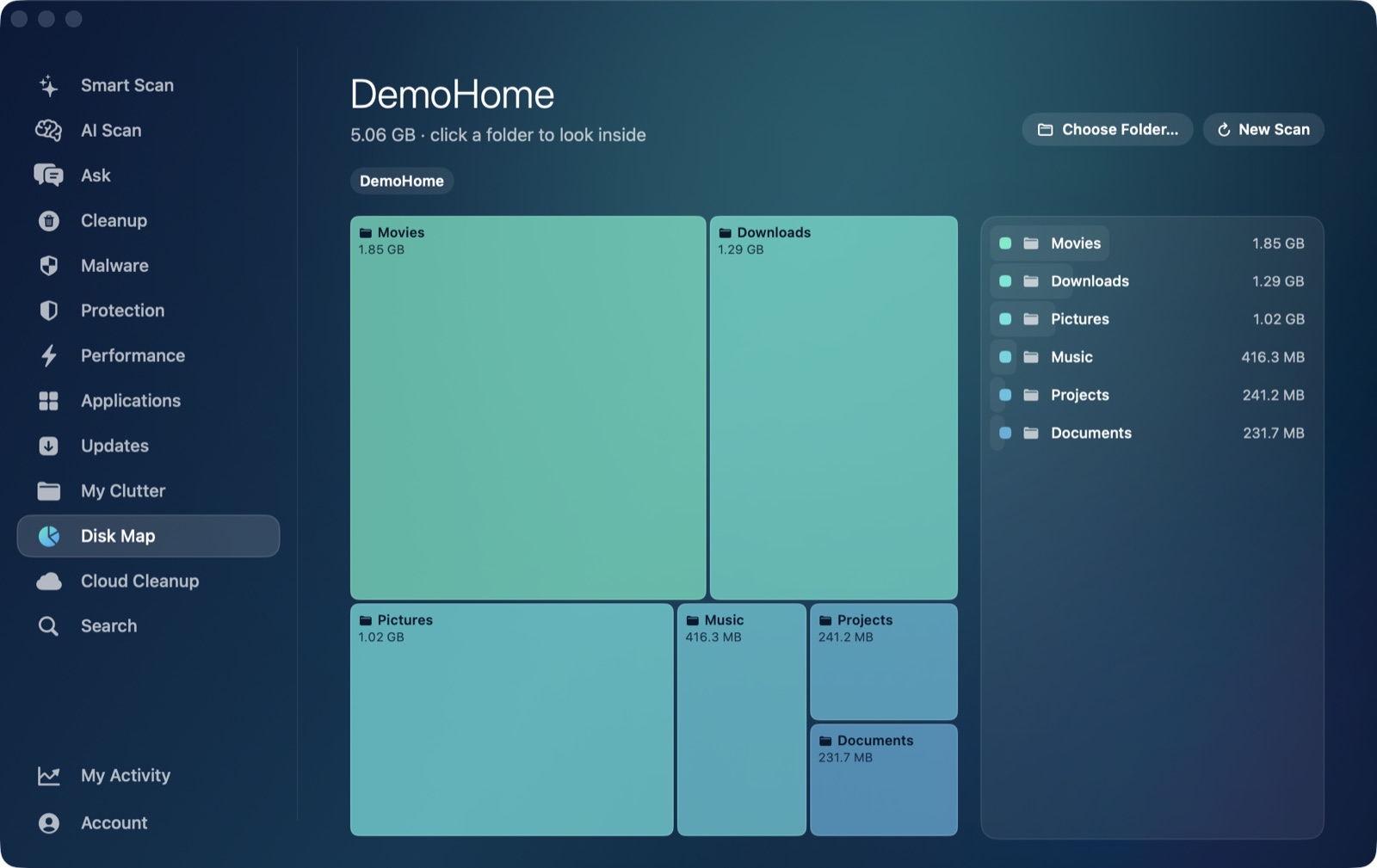
Before touching anything, it helps to actually see where your old Mac's space has gone rather than guess. AI Mac Cleaner's Disk Map draws the whole drive as a treemap — the biggest rectangles are the biggest folders, so the forgotten video project, the duplicate RAW photo library, or a node_modules folder you don't need anymore shows up immediately instead of hiding three folders deep in Finder. That's usually where the real space is, far more than caches alone, and it's the fastest way to decide what's worth a second look before the transfer rather than finding out after.
What you should still migrate without a second thought
This isn't about traveling light at the cost of losing anything real. Documents, photos you actually took, your email, your browser bookmarks, your app licenses and settings, your Messages history — all of that is exactly what Migration Assistant exists to carry over safely, and none of the categories above touch it. AI Mac Cleaner's removals all go through the Trash, never a permanent delete, specifically so a cleanup pass before a big move like this one can't accidentally take something you needed. If in doubt about a specific file, leave it — the point is clearing out the junk that was never going to matter, not making snap judgment calls on everything in sight.
One pass, before you start the transfer
Run it in roughly this order on the old Mac, before you open Migration Assistant: Disk Map to see what's actually big, My Clutter to clear exact duplicates, Cleanup for the 13 junk categories, and a quick look at Applications for leftovers from anything you've already uninstalled. None of it touches the files Migration Assistant is there to move. AI Mac Cleaner has a 7-day free trial with every feature unlocked and no card required, plans from $6.99/mo after, if you'd rather do this in a few minutes than folder by folder. If you're moving on from the old Mac entirely afterward — selling it or trading it in rather than keeping it as a backup machine — see clean up mac before selling or trading in for the separate step of wiping it safely; for just the big-file side of this, see how to find large files on your Mac.
Frequently asked questions
Does Migration Assistant copy caches and junk files too?
Yes — it copies the whole user account by default, which includes app caches, leftover files from uninstalled apps and duplicate files, not just your documents and photos. It has no way to tell junk apart from data you actually want.
Will cleaning up the old Mac make the migration itself faster?
Yes, a little — less data to move over Wi-Fi or a cable means a shorter transfer, though the bigger benefit is starting the new Mac without inherited clutter rather than the transfer speed itself.
Should I clean up the new M6 iMac too, right after migrating?
Not really — a brand-new Mac has nothing to clean yet. The useful pass is on the old Mac, before the transfer, since that's where years of caches and leftovers actually accumulated.
I'm keeping my old Mac as a spare, not selling it — does this still apply?
Yes, if you're migrating your main account to the new iMac and want a clean copy rather than a clone of the old Mac's full clutter. If you're also planning to hand the old Mac to someone else later, the separate selling/trading-in checklist covers sign-out and erasing steps this one doesn't.