 AI Mac Cleaner
Uninstall Notion Completely on a Mac: What's Left Behind
Dragging the Notion desktop app to the Trash leaves its cache, preferences and offline workspace data behind in ~/Library. Here's what each one is and where to find it.
Notion's desktop app is a straightforward drag-to-Trash removal for the app bundle itself — but like most apps that sync data and keep an offline cache, it writes several supporting folders into ~/Library that a plain Trash-and-empty doesn't touch. None of it is hidden maliciously; it's just the standard pattern for any app that needs to work offline and remember your settings between launches.
Removing the app itself
- Quit Notion completely (check the menu bar for a running icon, not just closing the window).
- Drag Notion from
/Applicationsto the Trash. - Empty the Trash.
That removes the app bundle. Your Notion workspace itself lives in the cloud and is entirely unaffected either way — nothing about uninstalling the desktop app touches your pages, databases or anything shared with teammates.
What's left in ~/Library
Notion's Mac app is identified internally by the bundle identifier notion.id, which is the pattern to look for across the standard Library locations:
~/Library/Application Support/Notion— the main folder for local settings and offline workspace data the app caches so pages load faster and work partially offline.~/Library/Caches/notion.id— temporary cache files, safe to remove any time; nothing here is unique data.~/Library/Preferences/notion.id.plist— your app-level preferences: window size, last-open workspace, display settings.~/Library/Saved Application State/notion.id.savedState— macOS's own window-restoration data for the app, letting it reopen to where you left off.
None of this holds anything that isn't also stored in your actual Notion workspace in the cloud — it's local convenience data, not your content.
Why this matters for a clean reinstall
If you're uninstalling Notion to fix a specific problem (a corrupted local cache causing slow loading or sync glitches, for example) rather than removing it for good, leaving the app installed but clearing just ~/Library/Caches/notion.id is a lighter first step than a full uninstall-and-reinstall — it resets the local cache without touching your saved preferences or requiring you to sign in again.
Checking for a stuck background process
Occasionally an app doesn't fully quit the way you'd expect, especially if it crashed rather than closing normally. Before dragging Notion to the Trash, open Activity Monitor and search for "Notion" in the process list — if anything's still running, select it and use the Stop button (the X in the toolbar) to force it closed first. Trying to remove an app's files while a background process still has them open can leave things in an inconsistent state, so this is worth the extra 30 seconds, particularly if Notion seemed unresponsive right before you decided to uninstall it.
Reinstalling cleanly afterward
If the goal is a fresh install rather than removing Notion for good, doing the full cleanup above first — app, cache, preferences and saved state — means the next install starts from nothing rather than silently picking up an old, possibly corrupted local cache. Download the current installer directly from Notion's own site rather than an old .dmg you might still have sitting in Downloads, for the same reason covered in our guide to a cluttered Downloads folder — old installers are easy to grab by mistake once a few app updates have passed.
How AI Mac Cleaner helps
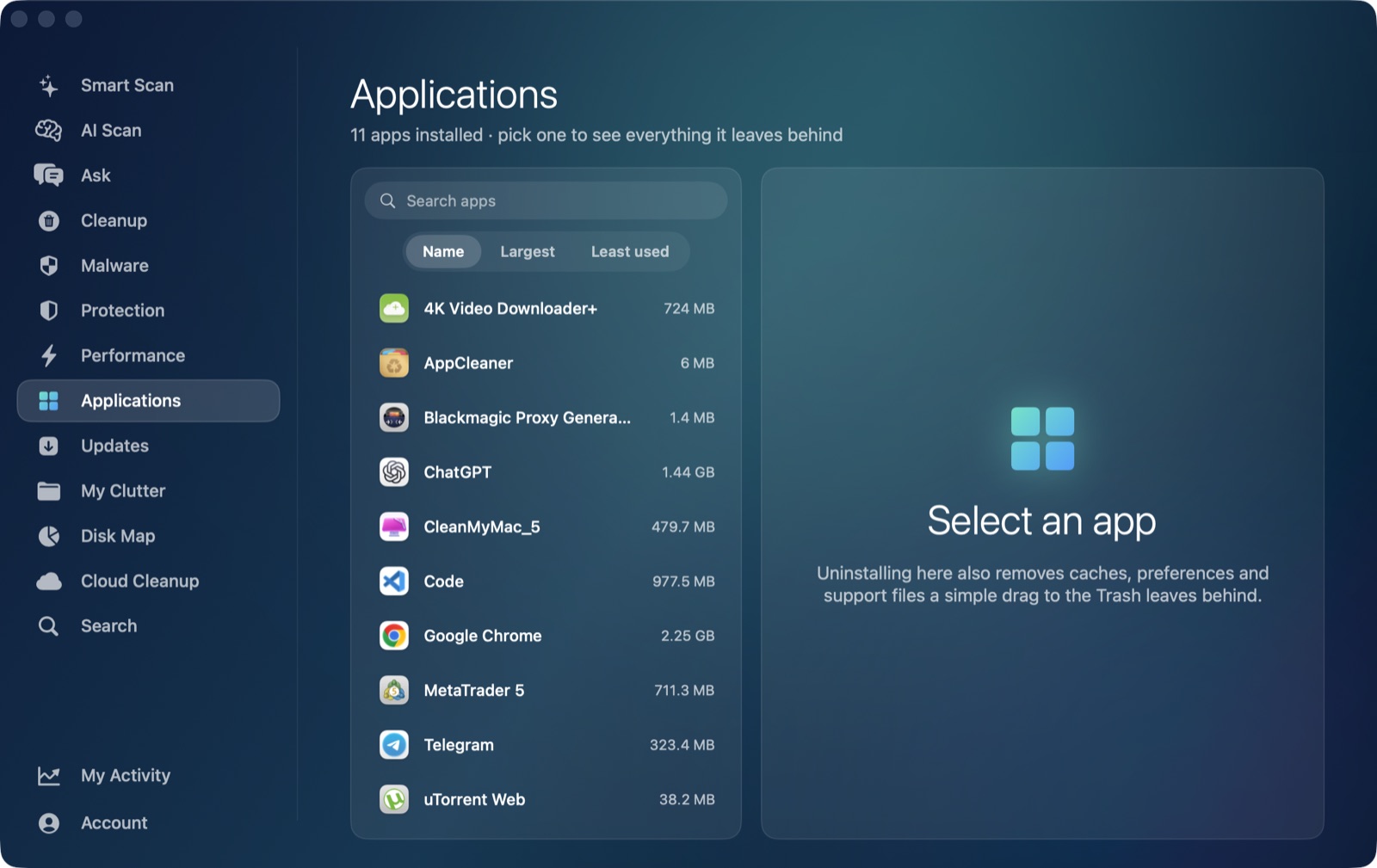
The Applications module works as an uninstaller that also finds an app's leftovers in ~/Library, matching by bundle identifier rather than display name — for Notion, that's notion.id. Point it at Notion after dragging the app itself to the Trash, and it searches Application Support, Caches, Preferences and Saved Application State for anything still there, shows you the total size, and clears it in one confirmed action. Everything goes through AI Mac Cleaner's Trash-only remover, so nothing is deleted outright.
If you're clearing out other productivity or collaboration apps at the same time, our Slack cache guide covers the lighter "keep the app, clear the cache" version of this same idea for a different app. AI Mac Cleaner has a 7-day free trial with every feature unlocked and no card required, and plans start at $6.99/mo after that.
Frequently asked questions
Will uninstalling the Notion desktop app delete my pages or workspace?
No. Your workspace, pages and databases live in Notion's cloud and are completely separate from the local desktop app. Uninstalling only removes the app itself and its local cache/preferences on this one Mac.
Do I need to sign out of Notion before uninstalling?
Not strictly — signing out first is tidy but not required for the app or your account. Your workspace data isn't affected by local sign-in state either way.
Where does Notion store its local cache on a Mac?
Mainly ~/Library/Application Support/Notion and ~/Library/Caches/notion.id, alongside a preferences file and a saved-state file for window restoration, all identified by the app's bundle ID notion.id.
Can I just clear Notion's cache without uninstalling the whole app?
Yes — removing ~/Library/Caches/notion.id on its own resets the local cache (useful if pages are loading slowly or a sync glitch is showing stale content) without touching your preferences or requiring you to sign back in.