 AI Mac Cleaner
Uninstall 1Password Completely on a Mac: What to Back Up First
Uninstall 1Password completely on a Mac removes your saved logins too, unless you export them first. Here's the safe order, and the 4 Library folders it leaves behind.
If you want to uninstall 1Password completely on a Mac, the order you do things in matters more than it does for most apps: 1Password stores your actual password vault data locally as part of its app support files, so removing everything at once without exporting first means losing access to logins you haven't memorized. Get the export done before you touch the Trash, then the rest of the removal is the same four-folder pattern as any other app.
Back up your vault before you remove anything
Open 1Password while it's still installed and export your data (1Password menu → Export, or the equivalent in your version) to a 1PUX file saved somewhere outside the app's own folders — your Documents folder is fine. This matters even if your vaults sync to 1Password's own servers, because the point of exporting is having a local copy you control before you start deleting local files, not assuming the cloud copy makes local deletion risk-free.
Why dragging to the Trash isn't enough
Like almost every Mac app, 1Password is really two things: the program itself in /Applications, and a set of support folders under ~/Library it writes to while running. Deleting the app bundle removes the interface; it does nothing to the local data 1Password built up — which, unlike most apps, can include vault data itself, not just caches and preferences.
Where 1Password's leftovers live
These are the four general locations almost any macOS app uses outside its own bundle, with 1Password's own folder inside each:
~/Library/Preferences— window layout, browser extension pairing state, and general settings.~/Library/Caches— temporary data rebuilt automatically if you reinstall; safe to clear once the app is gone.~/Library/Containersand~/Library/Group Containers— this is where 1Password 8 specifically keeps its sandboxed app data, under an identifier rather than the plain app name (1Password 8 doesn't share this with older 1Password versions, so if you've used more than one version over the years, check for separate folders from each).~/Library/Logs— diagnostic logs from past sessions.
A full uninstall means clearing the 1Password-specific folder inside each of those, not just the app icon — and confirming your export succeeded before you do, since the Group Containers folder is exactly where unexported vault data would otherwise be lost for good.
Finding them by hand
Open Finder, press Shift-Command-G, and visit each of the four paths above, looking for a folder matching 1Password's identifier (com.1password or a similar AgileBits/1Password-prefixed name) rather than the plain word "1Password" alone — some apps store things under an identifier instead of their display name, which is exactly the detail that makes manual searching slow to get right, and more consequential to get wrong here than for a chat app's cache.
How AI Mac Cleaner handles it instead
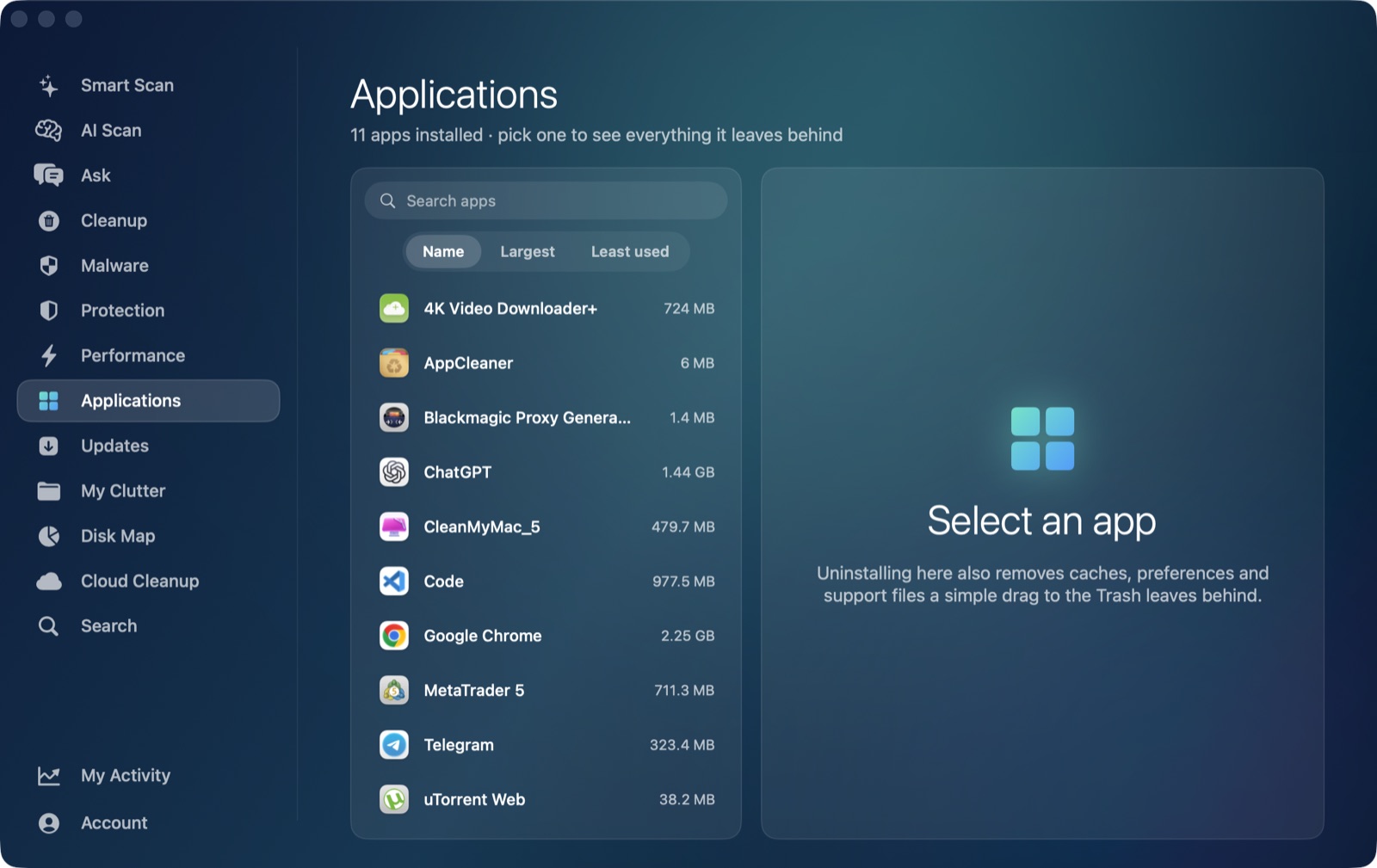
AI Mac Cleaner's Applications module works as an uninstaller that also finds an app's leftovers in ~/Library, matching by the app's own identifier rather than guessing from its display name — the same approach its Slack removal uses. Point it at 1Password after you've exported your vault, and it finds the preferences, containers and logs together, shows you the list before anything moves, and removes the lot in one confirmed action — instead of checking four folders by hand and guessing at identifier names. For the general pattern this follows on any app, see uninstalling Mac apps properly.
Nothing is deleted outright
Every removal in AI Mac Cleaner goes through its Trash-only remover, which also refuses a fixed list of protected system paths — so if you remove 1Password's folders and realize you still needed something, it's recoverable from the Trash until you empty it yourself, on purpose. That said, the export step above is still the real safety net for your actual passwords; the Trash only protects files, not whether you remembered to export before deleting a container folder.
If you'd rather not hunt through Library folders by hand once your export is done, AI Mac Cleaner's Applications module does the finding for you, on 1Password or anything else installed. There's a 7-day free trial with every feature unlocked and no card required, and plans start at $6.99/mo after that.
Frequently asked questions
Will uninstalling 1Password delete my saved passwords?
If you haven't exported first, yes — 1Password keeps local vault data in its app support files, and removing those folders without a prior export means losing access to anything not also stored elsewhere (like synced to another device still running 1Password, or already saved in your browser separately).
What's the safe order to uninstall 1Password?
Export your vault to a 1PUX file first, confirm the export file looks right, then remove the app and its Library folders. Doing it in the other order risks losing vault data you hadn't backed up elsewhere.
Where does 1Password 8 specifically store its data?
Primarily under ~/Library/Containers and ~/Library/Group Containers, using an identifier rather than the plain app name, and separately from any older 1Password version's folders if you've used more than one over the years.
Is it safe to delete 1Password's leftover folders myself in Finder?
Yes, once you've exported your vault and the app is already removed — match folders by 1Password's identifier rather than name alone, and move things to the Trash rather than deleting directly so a mistake stays recoverable.
How is AI Mac Cleaner's uninstaller different from just dragging 1Password to the Trash?
It removes the app and then specifically searches ~/Library for 1Password's own leftover folders by identifier, shows you the list before anything happens, and moves everything to the Trash rather than deleting it outright — but it doesn't export your vault for you, so do that step first regardless of which removal method you use.